Overview
This document provides guidelines for setting up your branch logo for use within Softbase Evolution. The branch logo is used on customer-facing documents, including invoices, purchase orders, and service recaps generated from the Softbase Service mobile app.
To upload your logo, navigate to Settings > Administration > Branch. Open the branch you want to update and select the Logo Graphic tab. From there, drag and drop your logo image file into the upload area. Make sure the Use Graphic option is checked, then click Save.
Recommendations
For best results, the preferred logo size is approximately 430 pixels wide by 145 pixels high. The exact size does not need to match these dimensions, but maintaining a similar aspect ratio is important to ensure the logo displays correctly.
Larger images, such as 860 x 290, can be used and will scale appropriately. A resolution of 300 DPI or higher is recommended for optimal print quality.
Additionally, from Settings > Files > Invoice Design Options > Additional Settings, you can specify a custom Height, Width, and Sizing option in the logo section to further control how your logo is displayed.
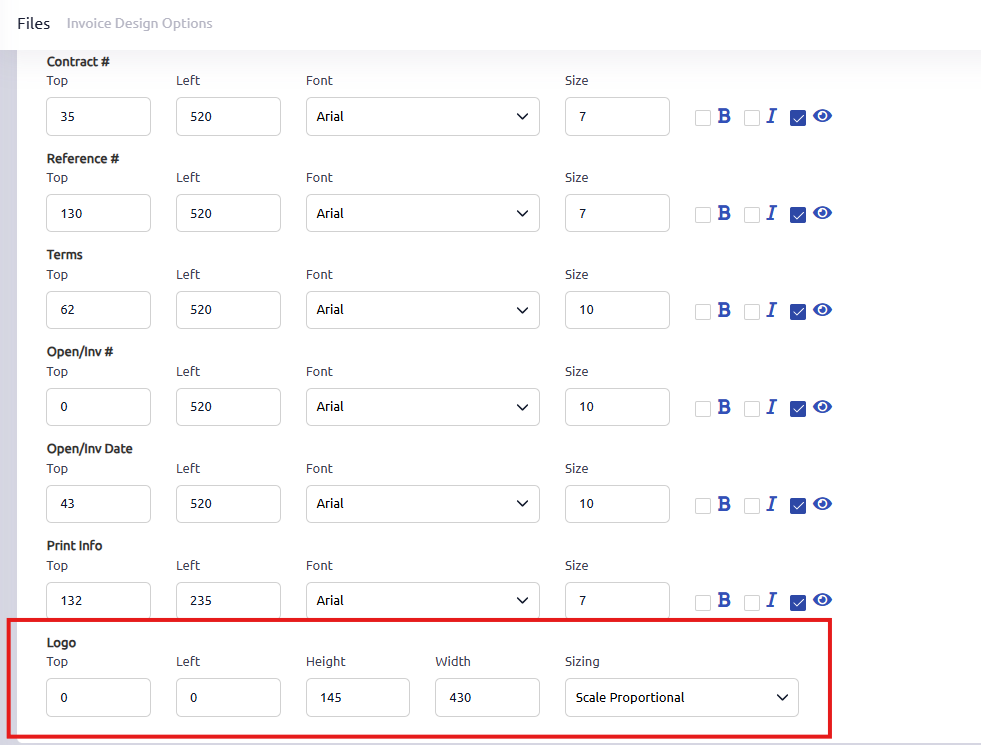
While making these adjustments, you can open the invoice preview window from General > Invoicing and use the Refresh option as you continue making changes. This allows you to see updates to your logo in real time.
Tip: If you want your logo to appear closer to the top left, you can add extra white space to the bottom and right sides of the image. See example below:

Was this article helpful?
That’s Great!
Thank you for your feedback
Sorry! We couldn't be helpful
Thank you for your feedback
Feedback sent
We appreciate your effort and will try to fix the article